> ## Documentation Index
> Fetch the complete documentation index at: https://docs.upshiftcloud.com/llms.txt
> Use this file to discover all available pages before exploring further.
# Import Contacts via CSV
> Complete step-by-step guide to importing people/contacts into Upshift.
## Overview
This guide walks you through importing your contacts (People) into Upshift.
## Before You Start
### Prerequisites Checklist
Your file is CSV, XLSX, or XLS format
File has fewer than 10,000 records
No duplicate email addresses in your file
**Companies imported first** (if linking People to Companies)
All custom fields exist in **Settings → Data Model**
**Import Companies Before People**
If you want to link People to Companies, import Companies first. The Company must exist before you can reference it.
## Step 1: Prepare Your Contact Data
### Required and Recommended Fields
| Field | Required? | Format | Notes |
| - | - | - | - |
| **Email** | Recommended | `name@domain.com` | Must be unique |
| **First Name** | Recommended | Text | |
| **Last Name** | Recommended | Text | |
| **Company** | Optional | Domain or ID | Links to existing Company |
| **Phone** | Optional | Multiple columns | See below |
| **Job Title** | Optional | Text | |
| **Custom fields** | Optional | Varies | Must exist in Data Model |
### Email Format
* Must be valid email format: `name@domain.com`
* **Must be unique** — no duplicates in your file or in Upshift
* For additional emails, use the **Emails / Additional Emails** column:
```
["jane@example.com","jane.doe@example.com"]
```
### Phone Format
Phone is a **nested field** requiring multiple columns:
| Column | Example |
| - | - |
| **Phones / Primary Phone Number** | `4159095555` |
| **Phones / Primary Phone Country Code** | `US` |
| **Phones / Primary Phone Calling Code** | `+1` |
### Linking to Companies
Add a column with the Company's unique identifier:
| Column Name | Format | Example |
| - | - | - |
| `companyDomain` | URL format | `https://acme.com` |
| `companyId` | UUID | `c776ee49-f608-4a77-8cc8-6fe96ae1e43f` |
**Use Domain URL format** (`https://acme.com`), not the label. This matches how Companies are stored in Upshift.
### Sample CSV Structure
```csv theme={null}
firstName,lastName,email,jobTitle,companyDomain,Phones / Primary Phone Number,Phones / Primary Phone Country Code
John,Smith,john@acme.com,CEO,https://acme.com,4159095555,US
Jane,Doe,jane@widgets.co,CTO,https://widgets.co,2125551234,US
```
**Pro tip:** Click **Download sample file** during import or export a few existing People to see the exact column names Upshift expects.
## Step 2: Access the Import Feature
**Option 1: From the People View**
1. Navigate to **People** in the left sidebar
2. Click the **⋮** icon on the top right
3. Select **Import records**
**Option 2: Using Command Menu**
1. Press `Cmd + K` (Mac) or `Ctrl + K` (Windows)
2. Type "import"
3. Select **Import records**
4. Choose **People**
## Step 3: Upload Your File
1. Click **Select file**
2. Choose your CSV, XLSX, or XLS file
3. Wait for Upshift to analyze your file
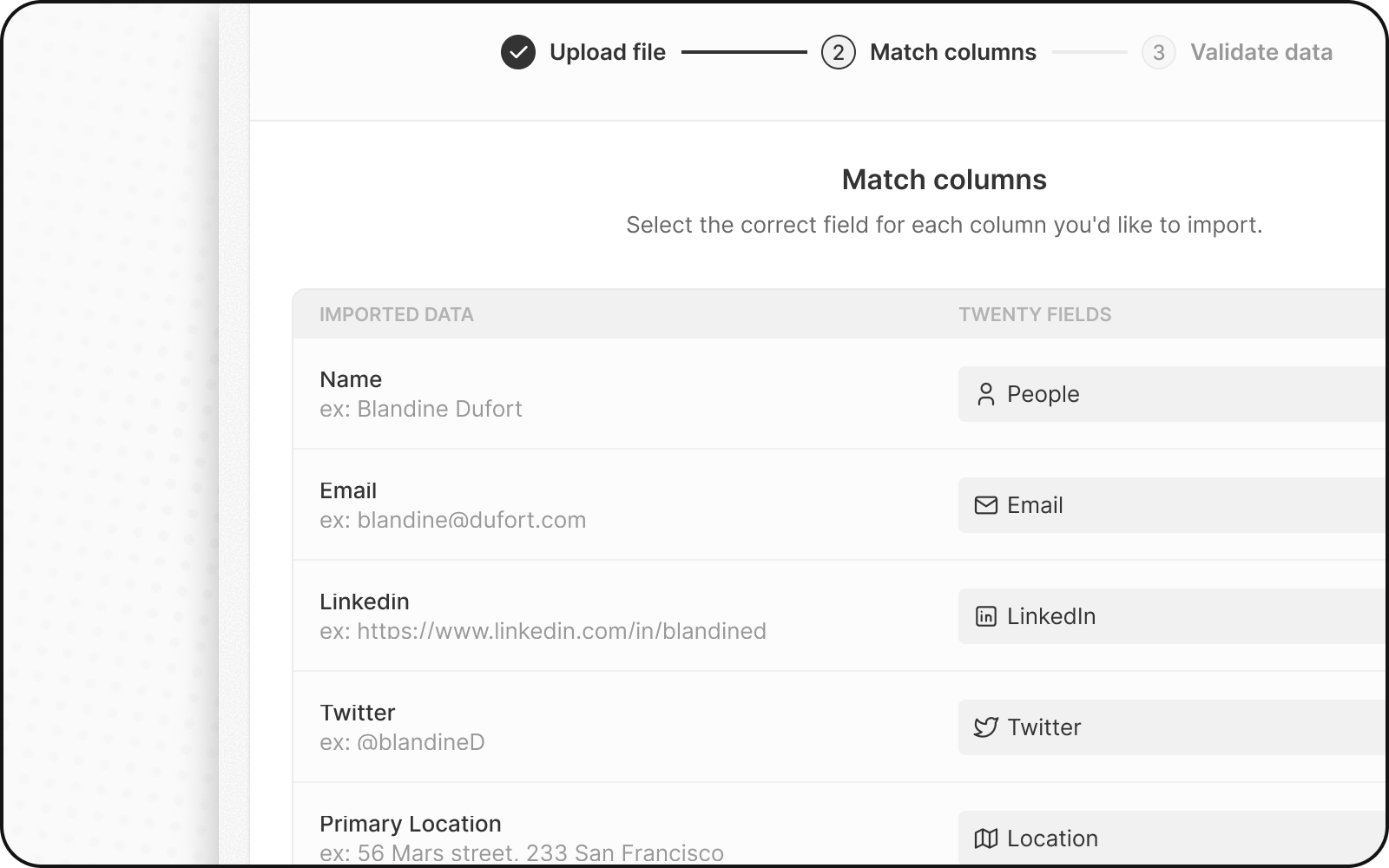
## Step 4: Map Your Columns
Upshift automatically tries to match your columns to fields. Review and adjust:
1. **Check automatic mappings** — verify they're correct
2. **Fix incorrect mappings** — click the dropdown to select the right field
3. **Skip columns** — select **Do not map** for columns you don't want to import
### Important Mapping Rules
| Column Type | Map To | Notes |
| - | - | - |
| Company reference | **Company** relation field | Use domain OR id, not both |
| Email | **Email** | Primary email address |
| Additional emails | **Emails / Additional Emails** | Array format |
| Phone | Separate columns | Number, Country Code, Calling Code |
 ### Mapping the Company Relation
When mapping the company column:
1. Find your company reference column (e.g., `companyDomain`)
2. Map it to the **Company** relation field
3. Upshift will link each Person to the matching Company
**Map only ONE unique identifier for relations.**
Don't map both `companyId` AND `companyDomain`. Choose one—preferably domain since it's human-readable.
## Step 5: Map Select Field Values
If you have Select or Multi-Select fields (like Lead Source):
1. Upshift shows your values alongside existing options
2. Match each value in your file to a Upshift option
3. Or create new options if needed
Select options use **API names**, not display labels. Check **Settings → Data Model** → Enable **Advanced mode** to see API names.
## Step 6: Review and Fix Errors
Before completing the import, Upshift validates your data:
1. Click **Next Steps**
2. Rows with errors are highlighted in **yellow**
3. **Fix errors directly** — click a cell and edit the value
4. **Remove problematic rows** — click the X to skip that row
### Common Contact Import Errors
| Error | Cause | Solution |
| - | - | - |
| **Duplicate email** | Email already exists in Upshift or file | Remove duplicate or update existing record |
| **Invalid email format** | Email format incorrect | Fix to `name@domain.com` |
| **Relation not found** | Company doesn't exist | Import Companies first or fix the reference |
| **Missing required field** | Required field is empty | Fill in the value or remove the row |
## Step 7: Complete the Import
1. Review the import summary
2. Click **Confirm** to import
3. Wait for the import to complete
4. Verify by checking a few records and their Company links
## After Importing Contacts
Your contacts are now in Upshift! Next steps:
1. **Verify Company links** — open a few People records to confirm they're linked to the right Company
2. **Import Opportunities** — if needed, link them to People and Companies
3. **Set up email sync** — connect your mailbox to see email history on contact records
## Updating Existing Contacts
To update contacts instead of creating new ones:
1. Include the `email` or `id` column in your file
2. Upshift matches records by this unique identifier
3. Existing contacts are updated; new ones are created
See [How to Update Existing Records](/en/user-guide/data-migration/how-tos/update-existing-records-via-import) for details.
## FAQ
Email is a unique identifier in Upshift. This prevents duplicate contacts and ensures email sync correctly links emails to the right person.
You can leave the email empty. However, we recommend adding emails when possible for better data quality and email sync functionality.
Add a column with the Company's domain (e.g., `https://acme.com`) or ID. During mapping, connect this column to the Company relation field.
Import Companies first, then import People. The Company must exist before you can reference it.
Yes! Create a custom field marked as "unique" in your data model to store the external ID. Note: the field name `id` is reserved for Upshift's internal ID.
The Company you're referencing doesn't exist. Either import the Company first, or check that the domain/ID exactly matches an existing Company.
## Troubleshooting
Having issues? Check:
* [How to Fix Import Errors](/en/user-guide/data-migration/how-tos/fix-import-errors)
* [How to Import Relations](/en/user-guide/data-migration/how-tos/import-relations-between-objects-via-csv)
* [Field Mapping Reference](/en/user-guide/data-migration/capabilities/field-mapping)
This documentation is built and hosted on [Mintlify](https://mintlify.com), a developer documentation platform.
### Mapping the Company Relation
When mapping the company column:
1. Find your company reference column (e.g., `companyDomain`)
2. Map it to the **Company** relation field
3. Upshift will link each Person to the matching Company
**Map only ONE unique identifier for relations.**
Don't map both `companyId` AND `companyDomain`. Choose one—preferably domain since it's human-readable.
## Step 5: Map Select Field Values
If you have Select or Multi-Select fields (like Lead Source):
1. Upshift shows your values alongside existing options
2. Match each value in your file to a Upshift option
3. Or create new options if needed
Select options use **API names**, not display labels. Check **Settings → Data Model** → Enable **Advanced mode** to see API names.
## Step 6: Review and Fix Errors
Before completing the import, Upshift validates your data:
1. Click **Next Steps**
2. Rows with errors are highlighted in **yellow**
3. **Fix errors directly** — click a cell and edit the value
4. **Remove problematic rows** — click the X to skip that row
### Common Contact Import Errors
| Error | Cause | Solution |
| - | - | - |
| **Duplicate email** | Email already exists in Upshift or file | Remove duplicate or update existing record |
| **Invalid email format** | Email format incorrect | Fix to `name@domain.com` |
| **Relation not found** | Company doesn't exist | Import Companies first or fix the reference |
| **Missing required field** | Required field is empty | Fill in the value or remove the row |
## Step 7: Complete the Import
1. Review the import summary
2. Click **Confirm** to import
3. Wait for the import to complete
4. Verify by checking a few records and their Company links
## After Importing Contacts
Your contacts are now in Upshift! Next steps:
1. **Verify Company links** — open a few People records to confirm they're linked to the right Company
2. **Import Opportunities** — if needed, link them to People and Companies
3. **Set up email sync** — connect your mailbox to see email history on contact records
## Updating Existing Contacts
To update contacts instead of creating new ones:
1. Include the `email` or `id` column in your file
2. Upshift matches records by this unique identifier
3. Existing contacts are updated; new ones are created
See [How to Update Existing Records](/en/user-guide/data-migration/how-tos/update-existing-records-via-import) for details.
## FAQ
Email is a unique identifier in Upshift. This prevents duplicate contacts and ensures email sync correctly links emails to the right person.
You can leave the email empty. However, we recommend adding emails when possible for better data quality and email sync functionality.
Add a column with the Company's domain (e.g., `https://acme.com`) or ID. During mapping, connect this column to the Company relation field.
Import Companies first, then import People. The Company must exist before you can reference it.
Yes! Create a custom field marked as "unique" in your data model to store the external ID. Note: the field name `id` is reserved for Upshift's internal ID.
The Company you're referencing doesn't exist. Either import the Company first, or check that the domain/ID exactly matches an existing Company.
## Troubleshooting
Having issues? Check:
* [How to Fix Import Errors](/en/user-guide/data-migration/how-tos/fix-import-errors)
* [How to Import Relations](/en/user-guide/data-migration/how-tos/import-relations-between-objects-via-csv)
* [Field Mapping Reference](/en/user-guide/data-migration/capabilities/field-mapping)
This documentation is built and hosted on [Mintlify](https://mintlify.com), a developer documentation platform.